
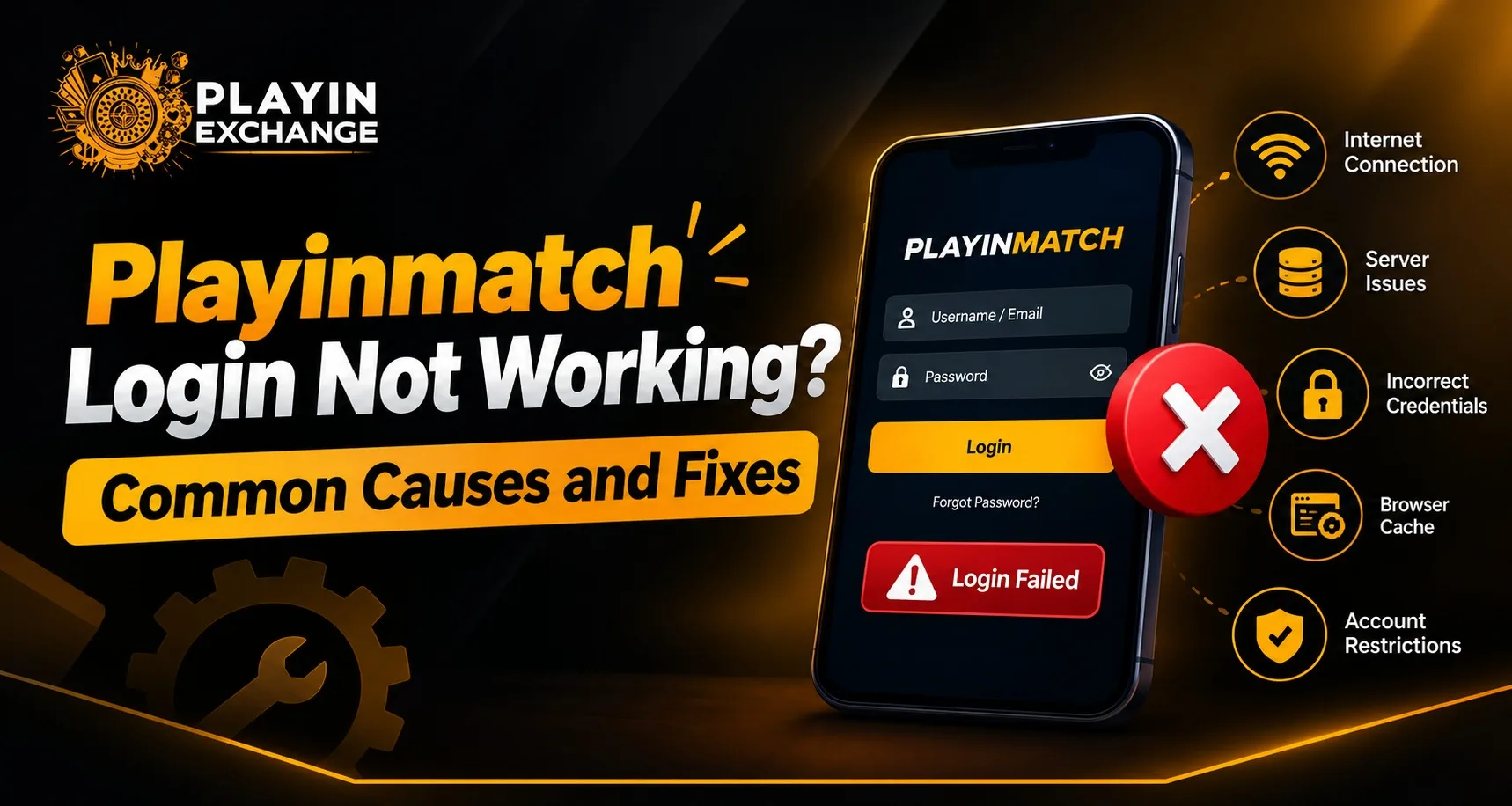
Having trouble accessing an online account can be frustrating, especially when the login page keeps rejecting your details or fails to load. If your playinmatch login is not working, the problem may not necessarily be with your account. Simple issues such as incorrect credentials, a weak internet connection, outdated browser data, OTP delays, or temporary technical problems can all affect access.
The good news is that most login problems can be checked systematically. In this guide, we explain the common causes and practical steps users can take to restore access while keeping account security and ease of use in mind.
Check Your Username and Password First
One of the most common reasons for a failed login is an incorrect username, mobile number, email address, or password. A single extra space or incorrect character can prevent successful authentication.
Before trying repeatedly, carefully check the details you have entered. Pay attention to capital letters, numbers, and special characters if your password uses them. If your credentials are saved through browser autofill, try entering them manually.
If you cannot remember your password, use the platform’s available password recovery option instead of repeatedly guessing. Current playmatches game pages also show password recovery and support options for users who cannot access their accounts.
Test Your Internet Connection
A stable connection is important for loading a login page and completing authentication. A weak Wi-Fi signal, unstable mobile data, or temporary network interruption can make a login page appear unavailable.
Try switching between Wi-Fi and mobile data. You can also refresh the page after confirming that other websites are loading normally. If everything else works except the login page, the issue may be related to the website or browser rather than your connection.
This simple check improves the overall customer experience because it avoids unnecessary password resets when the real problem is connectivity.
Clear Browser Cache and Cookies
Old or corrupted browser data can sometimes interfere with website functionality. If the login page is loading incorrectly, freezing, or repeatedly returning you to the same screen, clearing cached data may help.
Start by closing unnecessary browser tabs and refreshing the page. If that does not work, clear the relevant cache and cookies, then reopen the browser. Trying an updated alternative browser can also help identify whether the problem is browser-specific.
Keeping your browser updated is a useful long-term habit because modern websites are designed around current browser technologies.
Check OTP and Verification Problems
Some account systems may request an OTP or additional verification before allowing access. If the code does not arrive, first confirm that you are using the registered phone number or email address.
Check your network connection and wait briefly before requesting another code. Repeatedly requesting OTPs can make the process more confusing if several codes arrive later.
If your registered contact information is no longer accessible, contacting the platform’s support team is generally safer than attempting to create another account with different details.
Look for Temporary Technical Issues
Sometimes the problem is not on the user’s side. Maintenance, server interruptions, or temporary technical errors can affect login availability. Competitor troubleshooting pages commonly identify maintenance and server-related problems as possible causes of failed access.
If your password and connection are working normally but the page still fails, wait for a short period and try again. Avoid repeatedly submitting login requests while a technical issue may be occurring.
Make Login Comfortable Across Devices
Users now expect websites to work smoothly across phones, tablets, laptops, and desktop computers. A responsive login experience can make account access more convenient, particularly for people who switch between devices.
If the page does not work properly on your phone, test it through an updated mobile browser. If the browser works but an installed application does not, the application may need an update or a fresh installation.
Before making changes, remember your login credentials and avoid installing applications or accessing login pages from unknown sources.
Security and Thoughtful Account Management
Convenience should not come at the expense of security. Avoid entering passwords on shared or public devices, and do not provide passwords or OTPs to people claiming to offer technical support.
It is also sensible to use only trusted account-access links. Several third-party pages discuss unofficial links as a potential source of login and security problems, so checking the destination before entering credentials is an important precaution.
Good account habits provide long-term value because they reduce avoidable access problems while helping protect personal information.
When Should You Contact Support?
If you have checked your credentials, internet connection, browser, OTP, and device but still cannot access your account, support may be the next practical step.
When contacting support, explain the exact error message and mention whether you are using a mobile browser, desktop browser, or application. Do not send your password, OTP, or other confidential security information.
A clear support process matters because customers increasingly expect quick, understandable assistance when something goes wrong.
Conclusion
A failed playinmatch signup does not always mean there is a serious account problem. Start with the basics: verify your credentials, check your connection, clear outdated browser data, confirm OTP details, and consider whether a temporary technical issue is affecting access. These steps can make troubleshooting simpler and more comfortable.
For playmatches users, thoughtful login habits, updated software, and careful handling of account information can contribute to a smoother long-term experience. If basic troubleshooting does not resolve the issue, using the platform’s available support channels is the safer next step.
FAQs
Why is my Playinmatch login not working?
Common reasons include incorrect login credentials, an unstable internet connection, browser cache issues, OTP problems, outdated software, or temporary technical interruptions. Check each possibility one by one before contacting support.
What should I do if I forget my Playinmatch password?
If you have forgotten your password, use the available password recovery option and follow the verification instructions. Avoid repeatedly entering incorrect passwords, as this may temporarily restrict access.
Why am I not receiving my Playinmatch login OTP?
First, check that your registered mobile number or email address is correct and that your internet connection is stable. Check your messages or spam folder and wait briefly before requesting another OTP.
Can clearing browser cache fix Playinmatch login problems?
Yes, clearing cached files and cookies can sometimes resolve login or page-loading problems. After clearing the browser data, reopen your browser and try accessing the login page again.
What should I do if nothing fixes the login issue?
If basic troubleshooting does not solve the problem, contact the platform’s official support channel. Explain the error you are experiencing, but never share your password, OTP, or other confidential account information.